One project.
Shared context.
Keep people and rooms together.Set dates and a project budget.Give decisions a clear reference.

PROJECTS FOR DESIGNERS
Bring your team and client into one interior design project. Connect tasks, schedules, files and product decisions, with a web panel where your client can follow shared work and pay for orders.
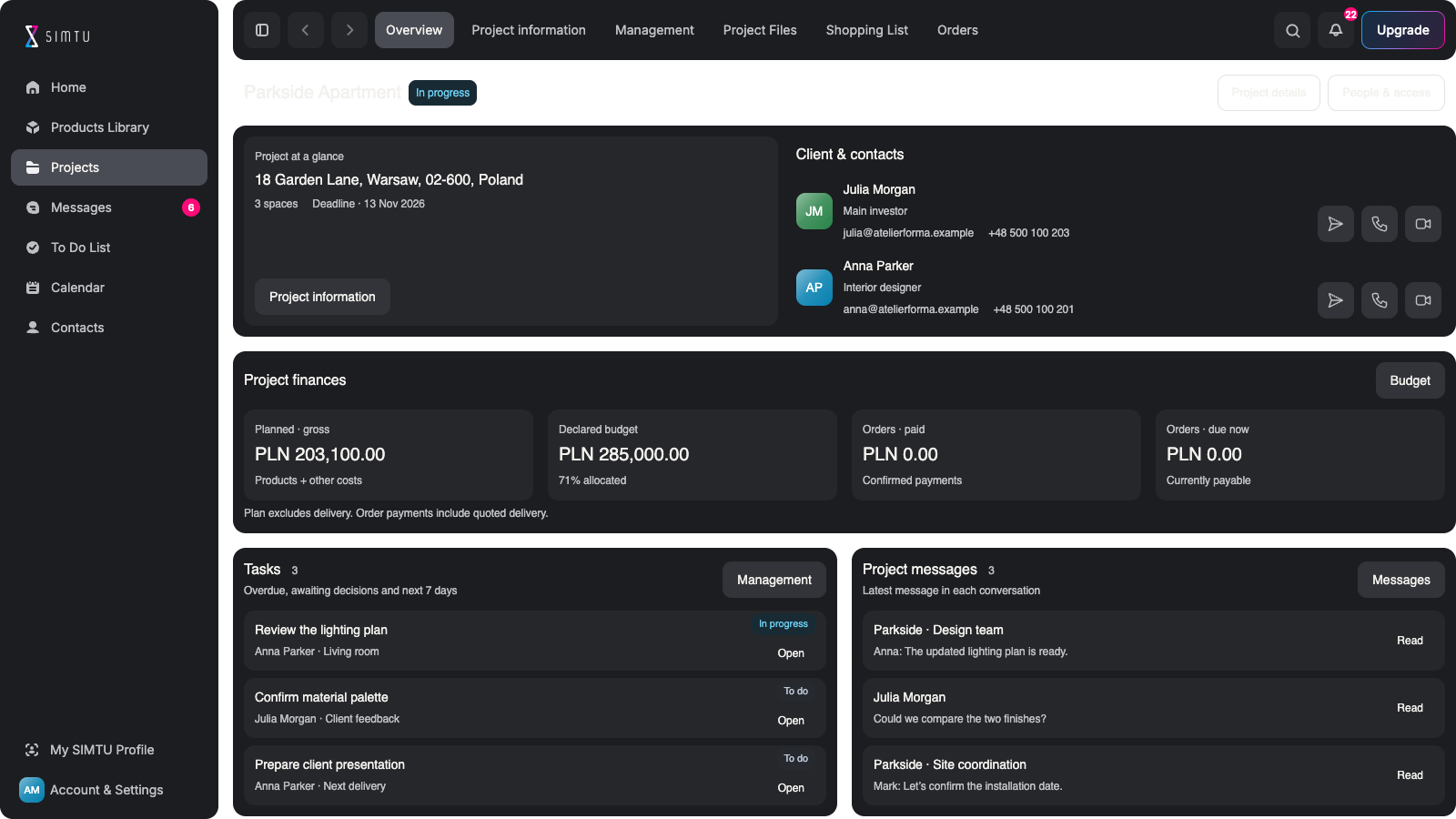
LESS COORDINATION. MORE PROGRESS.
Keep people and rooms together.Set dates and a project budget.Give decisions a clear reference.
Break work into smaller steps.Assign people and due dates.See what needs to happen next.
Organise drawings in folders.Keep references with the project.Share the right material.
Compare options for each room.Track quantities and feedback.Keep the chosen variant clear.
Share schedules and assign tasks.Give access to product selections.Let clients pay in shared Orders.
Review products by supplier.Check the offer before purchase.Follow payments and delivery.
START WITH THE CONTEXT
Keep the client, project contacts, rooms and key dates together. Use the project budget and space structure as context for the work, so selections and responsibilities belong to the right place.
Start your project ↗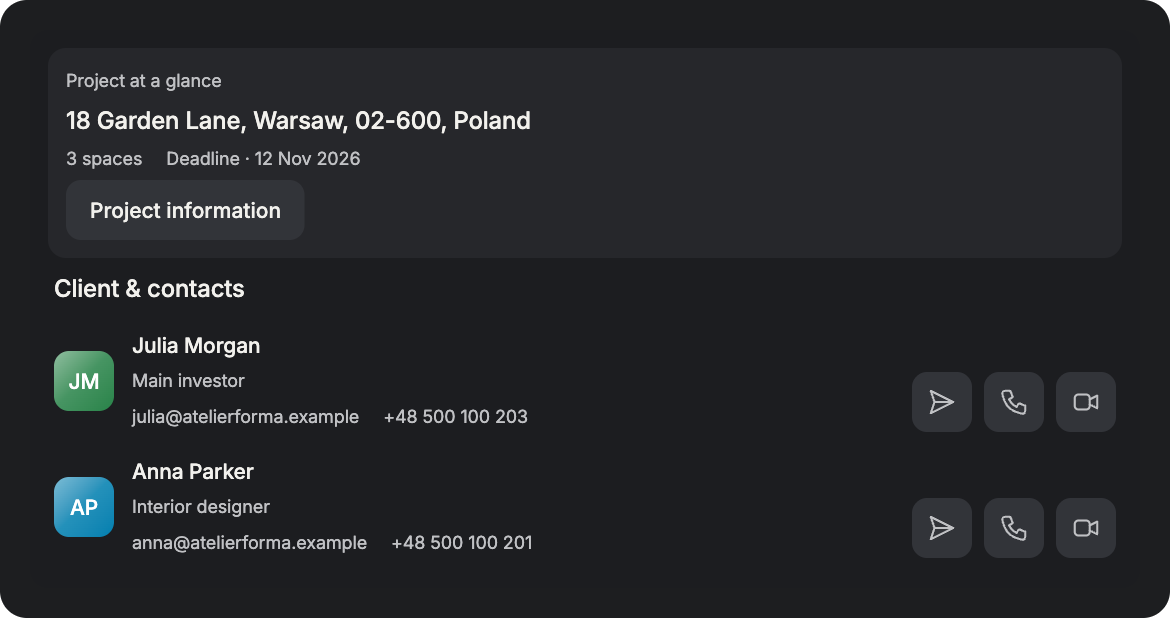
PROJECT TASKS. CLEAR NEXT STEPS.
Break the work into tasks and subtasks, assign responsibility and set dates. Move between List, Board, Timeline and Gantt to understand the same work from the view that suits the question.
Explore To Do List ↗PROJECT FILES. IN THEIR PLACE.
Keep drawings, references and documents in a project folder structure. Preview a file, find the folder you need and manage access to selected material without treating every file as public to the whole project.
Bring your files together ↗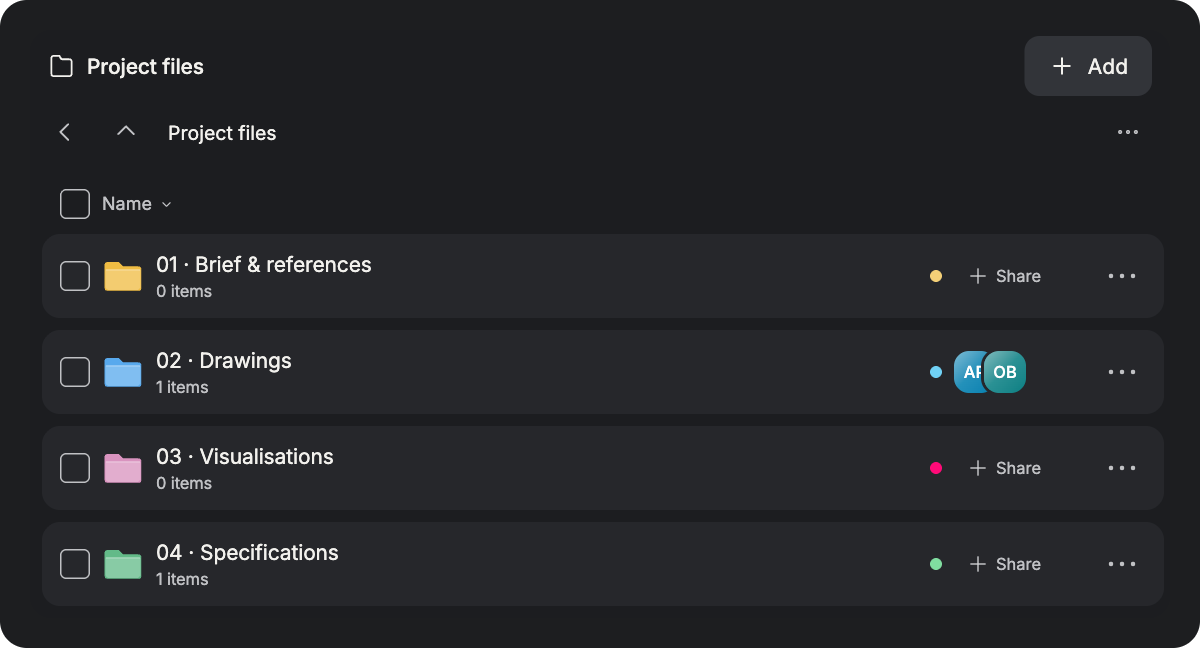
FROM OPTIONS TO DECISIONS
Bring products, quantities and room assignments into one working selection. Compare alternatives and follow client feedback, so a considered choice can progress without losing its specifications or project context.
Explore Products Library ↗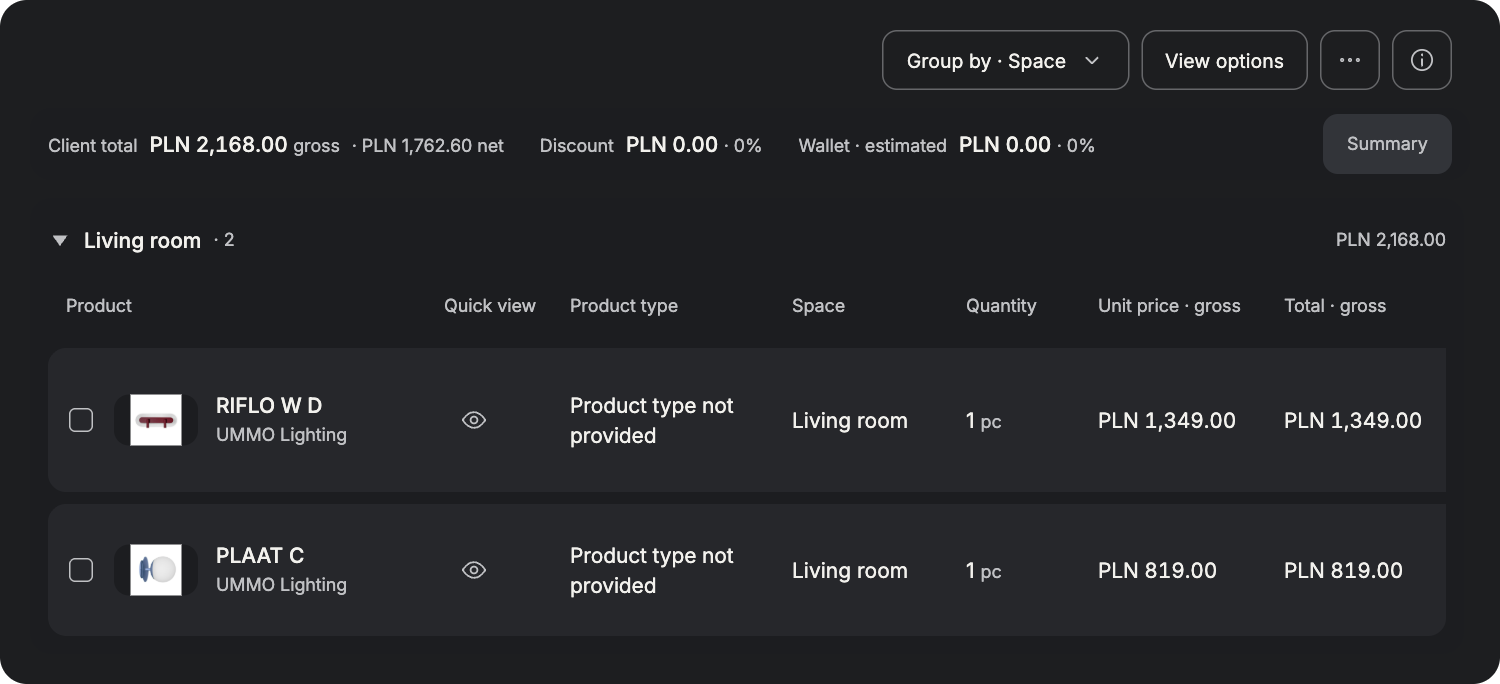
BEYOND THE APPROVAL
Orders is shared by the designer and client. Review the supplier’s complete offer together, including delivery. The client makes the payment from their web panel, while order details and payment stages stay connected to the project.
Compare collaboration plans ↗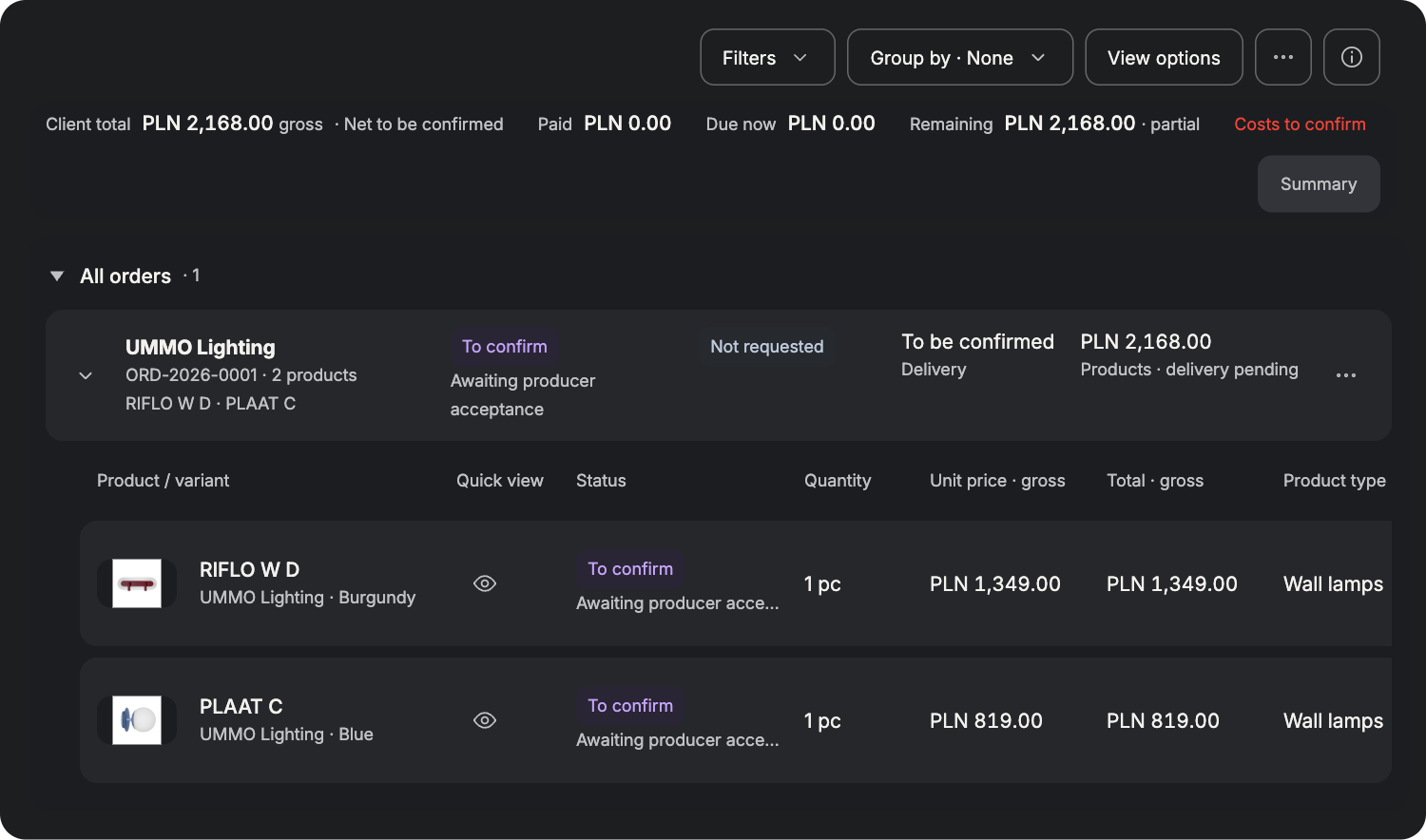
PREPARED FOR REAL PROJECT WORK
Keep the brief, responsibilities, selections and orders in context. Return to the information behind each next step.
Keep the brief close to the work. Check people, rooms and dates. Return to the project context.
See tasks and their status. Understand who owns each step. Keep the team moving forward.
Review products in their rooms. Compare the available options. Keep client feedback in context.
Check the supplier’s full offer. Review payment and delivery. Keep the order details together.
FROM PROJECT BRIEF TO NEXT DELIVERY
Bring each stage into one connected workspace.
Keep the details close as your project moves forward.
Add the client and contacts. Set up rooms and key dates. Record the project budget. Give the work a clear scope.
Create tasks and subtasks. Assign people and dates. Keep your preparation private. Track shared responsibilities.
Add products to each room. Set quantities and variants. Present useful alternatives. Gather the client’s feedback.
Review items by supplier. Check the complete offer. Confirm before purchasing. Approval is not a payment.
Track order payment stages. Check delivery information. Return to project documents. Keep the next action clear.
YOUR CLIENT. PART OF THE PROJECT.
Give clients a dedicated web panel.Keep project information together.Let them follow the shared work.
Share the project schedule.Keep upcoming dates in view.Help clients prepare on time.
Assign tasks to your client.Set dates for their next steps.Make responsibilities visible.
Allow access to the Shopping List.Share products and quantities.Keep selections in context.
Review the same order together.Check the complete supplier offer.Follow payment and delivery.
Clients pay directly from Orders.Keep payments with the purchase.Approval alone is not payment.
Projects keeps tasks and decisions inside a specific project.To Do List brings your assigned tasks across projects together.It also gives you a place for your own private tasks.
Share the schedule, assign tasks and allow Shopping List access.Your client follows the work through their own web panel.You control which project content and actions they can access.
Yes. Create subtasks to make larger pieces of work manageable.Assign responsibility and set dates for the next steps.Use List, Board, Timeline or Gantt to review the work.
The client pays from Orders in their own web panel.You and your client share the order and its payment context.Approving a product does not place an order or make a payment.
Standard and Pro support collaboration in a paid workspace.The host buys a seat for each invited co-designer.Your personal subscription does not replace that host seat.
Free includes one project and 30 To Do List items in total.You can invite one client to Orders and purchases.Cloud attachments, messaging and calls are not included.